HOW TO GET THE MOST OUT OF THE DRAGON CON APP.
I’ve been attending Dragon Con since 2003 and have used the Dragon Con app since it was first published in 2011. Before the app we got a 100+ page printed schedule. Some of us used colored highlighters to mark the events we were interested in.
I know that going through the schedule can be overwhelming. Dragon Con has more celebrity guests and FAR more programming than any other event I’ve ever attended.
Here is the Dashboard/Home Screen for the Dragon Con 2025 app.
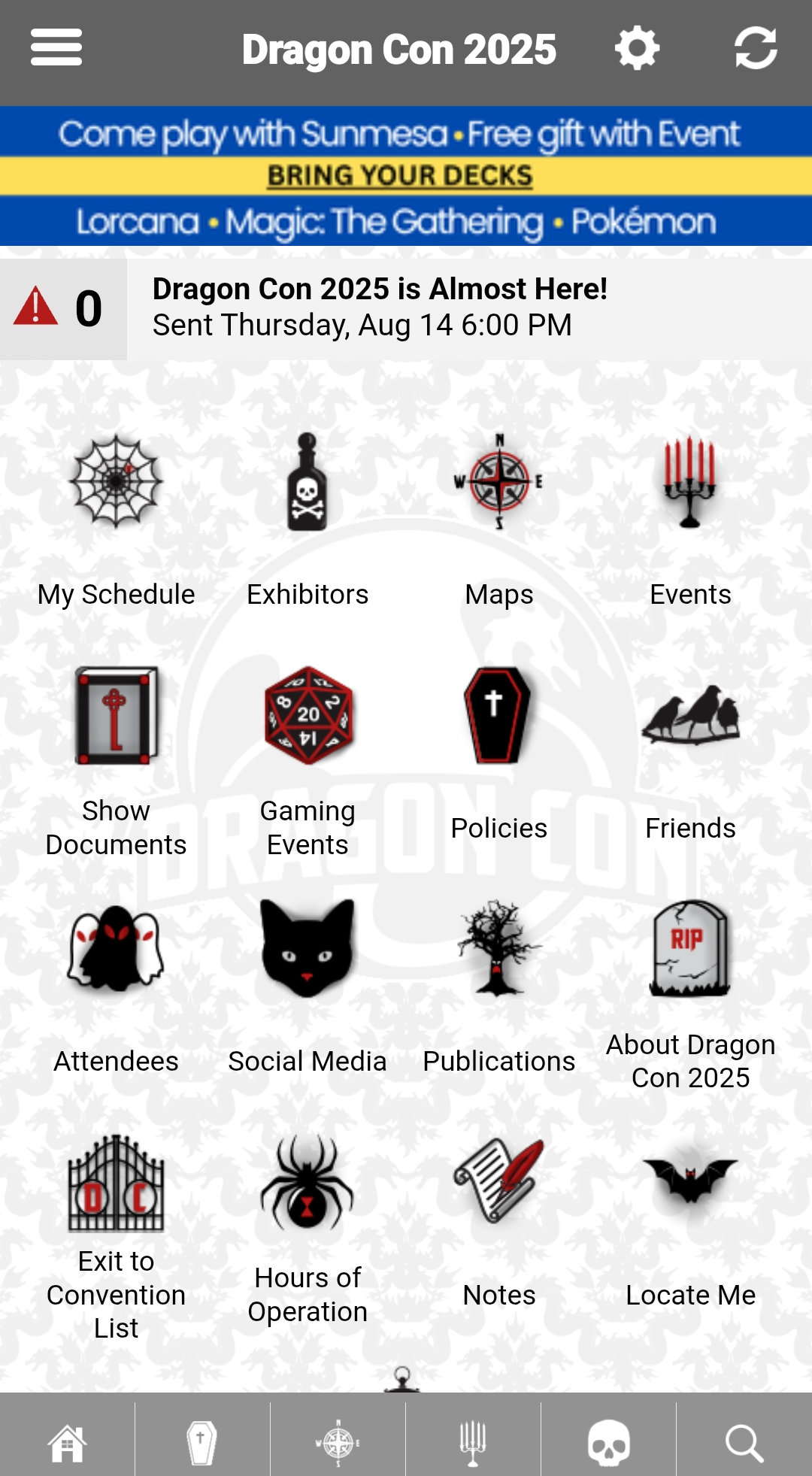
DO THIS FIRST. Create an account BEFORE making your schedule in the app. Then you can login to your account and restore everything if a glitch happens that erases your data. You don’t want to have to redo your entire schedule after working so hard on it!
1) Click on the Gear icon in the upper right hand corner. Then choose “Multi Device Sync.” If you see a message that says “You are already logged into the email@address.com account. You do not need to login again” then you are already logged in. There is nothing you need to do.
If you don’t see that message then you are NOT logged in. You should click “first device” on whichever device you plan to use the most. Create your account. Be sure to document your User Name and Password. You may need it later.
Then add a couple of events to your schedule by going to the home screen and click on “Events.” Click on the STAR icon 🌟 next to items you want to add to your schedule.
If you use the app on another device then click on the Gear icon in the upper right hand corner. Choose “Multi Device Sync.” Then choose “Additional Device.” Log in with your User Name and Password. Go to “My Schedule” and you will see the events you marked.

Q: How do I create a profile?
A: Click on the Gear icon in the upper right hand corner. Choose “My Profile.” Upload a photo – this will be displayed next to your name in the Attendees list. Remember to enable the checkmark next to “Tap here to publish your profile to Attendees list to engage with other users of the app.” This will make your profile public. If you choose to leave this option unchecked you can still share friend codes with others.
Go to the Attendees icon on the home screen. You should now be able to find your name if you chose to make your profile public. This eliminates the need to share a different friend code with every person.
Q: How do I add a custom event to my schedule?
A: This is helpful if you want to add unofficial events to your schedule such as fan meetups, photo shoots, meal breaks, your volunteer schedule, or a midnight prayer circle at the height of the full moon to summon the Old Ones. You know, the usual. ;)
Click on “My Schedule” on the home screen. Choose the day. Then click the plus symbol on the upper right hand corner of the page.
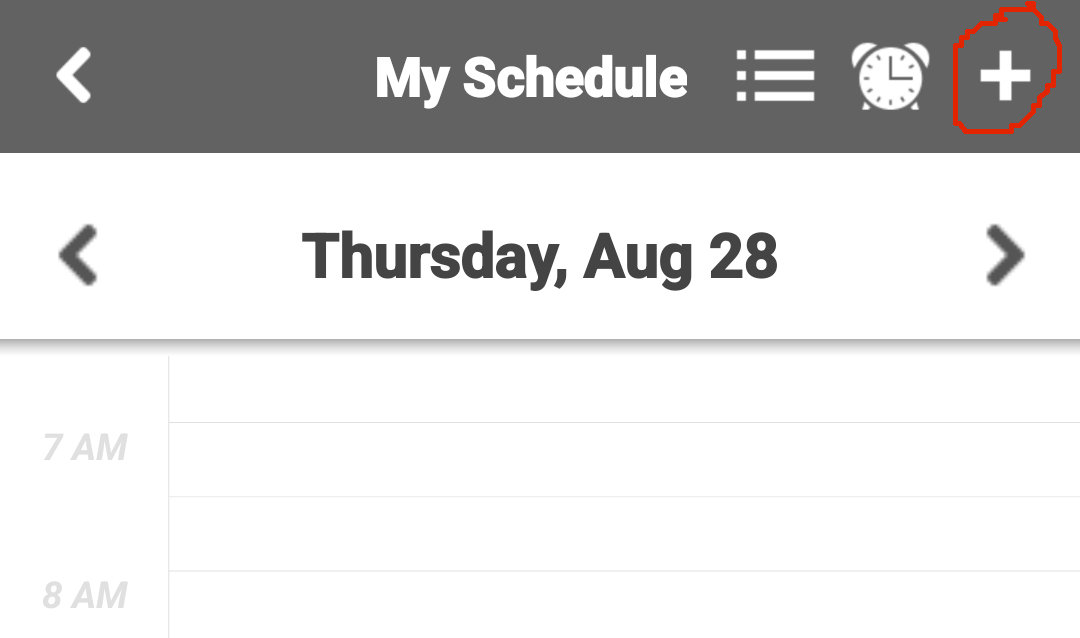
Type in the details of your custom Event on the “Schedule Item” screen. You can change the date and length of the event. Click “Done” to save. You will see the new event in “My Schedule.”

Q: How do I update the app?
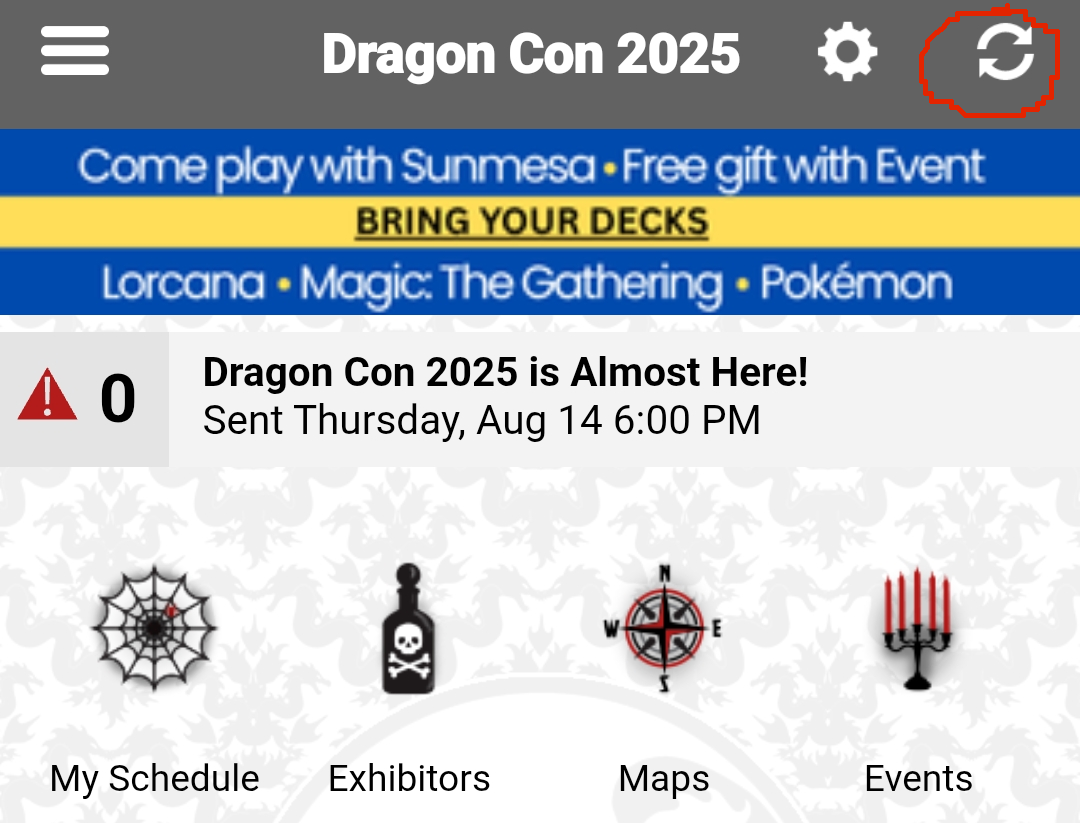
A: Go to the home screen. Look in the upper right hand corner. Click on the two arrows that form a circle. This is the Refresh icon. When there is new data available, the Refresh button will change colors on the Dashboard/Home Screen.
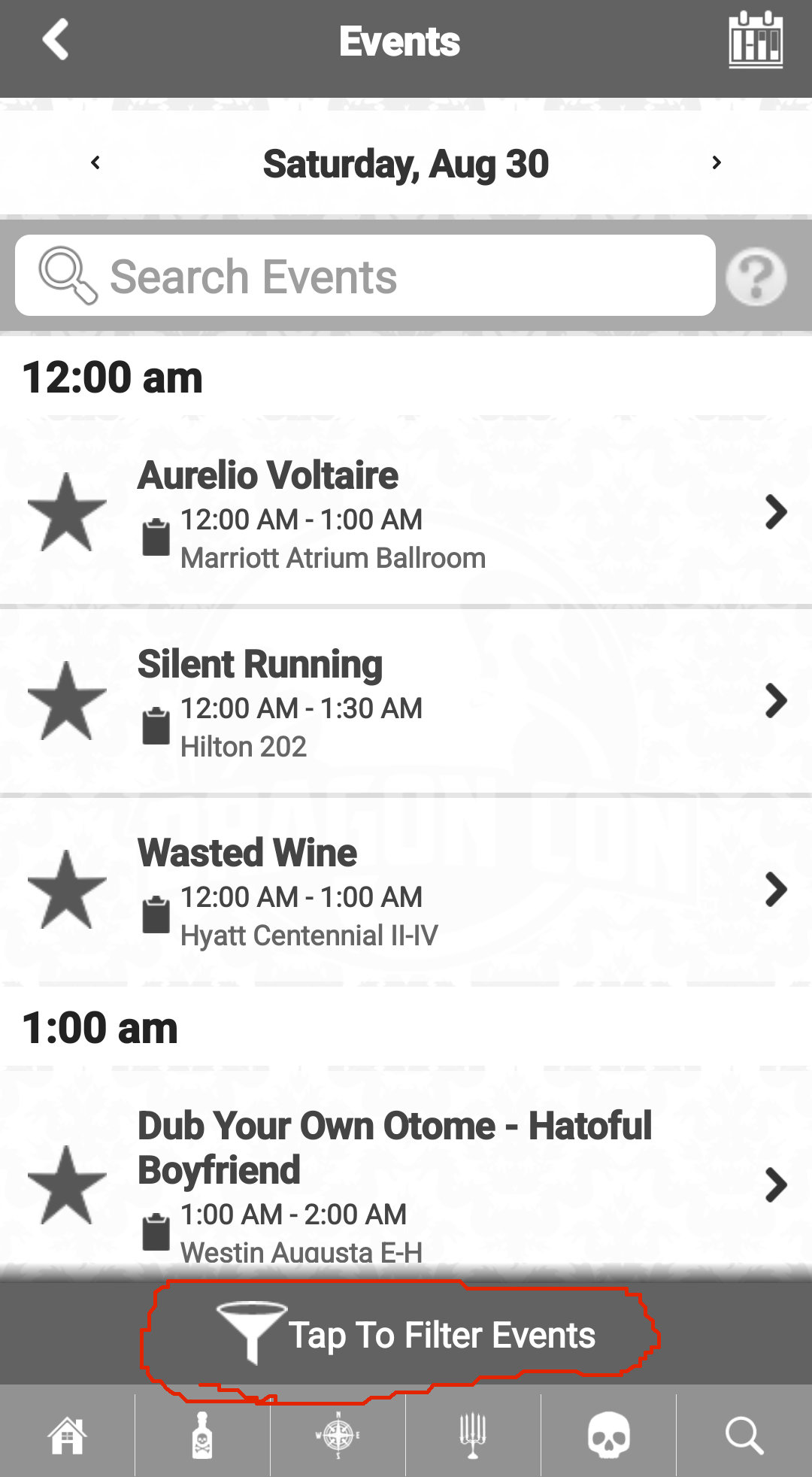
Q: There are too many events! How can I focus on the events I’m interested in?
A: Go to the home screen and click “Events.” Look at the bottom of the screen. Click on “Tap to Filter Events.”
Q: Help! I have multiple events for every time slot! How do I see a vertical list of of my entire schedule with no overlapping events?
A: Go to the home screen. Choose “My Schedule” and then click on the three horizontal lines on the upper right hand corner of the screen. The three horizontal lines are next to the clock icon. Clicking the three horizontal lines will show your schedule in a single vertical list.
This screen shows fake events from the test data published on Saturday, 8-16-2025. Notice that some of the events are at the same day and time.
The regular layout below displays overlapping items when there are multiple events are scheduled for the same time.

This screen shows fake events from the test data published on Saturday, 8-16-2025. Notice that some of the events are at the same day and time.
The vertical layout has no overlap.

Q: How do I share a friend code?
A: Click the “Friends” icon on the home screen. Then click “+ Add a friend.” Instructions will appear on screen. If a friend has given you a code to enter then choose “Enter Friend Code.” If you would like to generate a code to give to someone then choose “Request Friend Code.” Each code can only be used by one person. If you have ten friends then you will need to generate ten different codes.
Q: How do I share my schedule with friends?
A: Click the “Friends” icon on the home screen. Then click the name of a friend in your Friends list. Check the box next to “Share schedule.” You must do this for each person.
Q: How can I see all of the events in a specific location?
A: Click the “Maps” icon. Click on the name of a room in RED and then will show you all the events happening in that room for the entire convention. This feature may not be included in the first update. It may take a few days after the schedule is published for this feature to be enabled.
Q: Where can I find the desktop computer link to the app?
A: Go to https://www.dragoncon.org/resources/digital-resources and click on “Dragon Con App” and then “Open in Browser.” https://app.core-apps.com/dragoncon25 will take you to the desktop/laptop version for 2025.
Disclaimers: This is an unofficial, fan-run website. I have made every effort to ensure all information is correct. Any mistakes are solely mine. If you spot any inaccuracies, please Contact me. I cannot answer any questions on behalf of Dragon Con. If you have any questions for Dragon Con staff, please ask them directly at their official website https://www.dragoncon.org/about/contact.
 Dragon Con Eternal Members